Hermiq skills tutorial series — Part 1: Skills for your agents
Give a Hermiq agent a new capability without writing code. Browse the skills catalog, read the seeded examples, install a skill onto an agent, and author your own skill by hand or in conversation. Part 1 of 4.

Hermiq skills use the same idea as Claude Code skills: a Markdown document that teaches an agent one capability. If the concept is new to you, part 1 of the Claude Skills series (10 minutes) is a good primer. This series stands on its own, though.
A Hermiq agent gets new capabilities through skills: Markdown documents in the
open agentskills.io format, stored as OpenRegister objects.
In this part you browse the skills catalog, read the anatomy of the seeded example
skills, install one onto an agent, and author your own skill twice: once by hand in
the markdown form, once in conversation with the seeded skill-creator skill.
In the examples we use the local dev environment at http://localhost:8080 with
admin:admin. Replace those with your own host and credentials.
What a skill is
A skill is one capability, written down so an agent can perform it well. The agentskills.io format keeps it to three parts:
---
name: woo-request-triage
description: Triage an incoming WOO request — use when a new WOO/Woo-verzoek arrives and needs routing, deadline and exemption pre-check.
version: 0.1.0
---
# WOO Request Triage

<the body: numbered steps, rules, guardrails, examples>
- Frontmatter: YAML with at least
nameanddescription. The description doubles as the trigger: it tells an agent when to reach for this skill. - Body: the SKILL.md content. How to do the job, in plain Markdown.
- Files: optional auxiliary files such as
references/exemption-grounds.mdorexamples/tender-summary-example.md. Larger skills move detail out of the body and into these.
Hermiq stores each skill as an OpenRegister object, scoped to your organisation. Import and export are byte-for-byte: a skill you export is exactly the package you imported or authored, so skills travel in and out of Hermiq without loss.
Step 1: Open the skills catalog
Open Hermiq from the Nextcloud app menu, then pick Skills in the left
navigation. You land on the catalog at /skills.
A fresh install shows four seeded skills:
Each row shows a maturity badge of seven dots. The seeds ship at levels 1, 2, and 4 on purpose; Part 2 explains the ladder behind the dots.
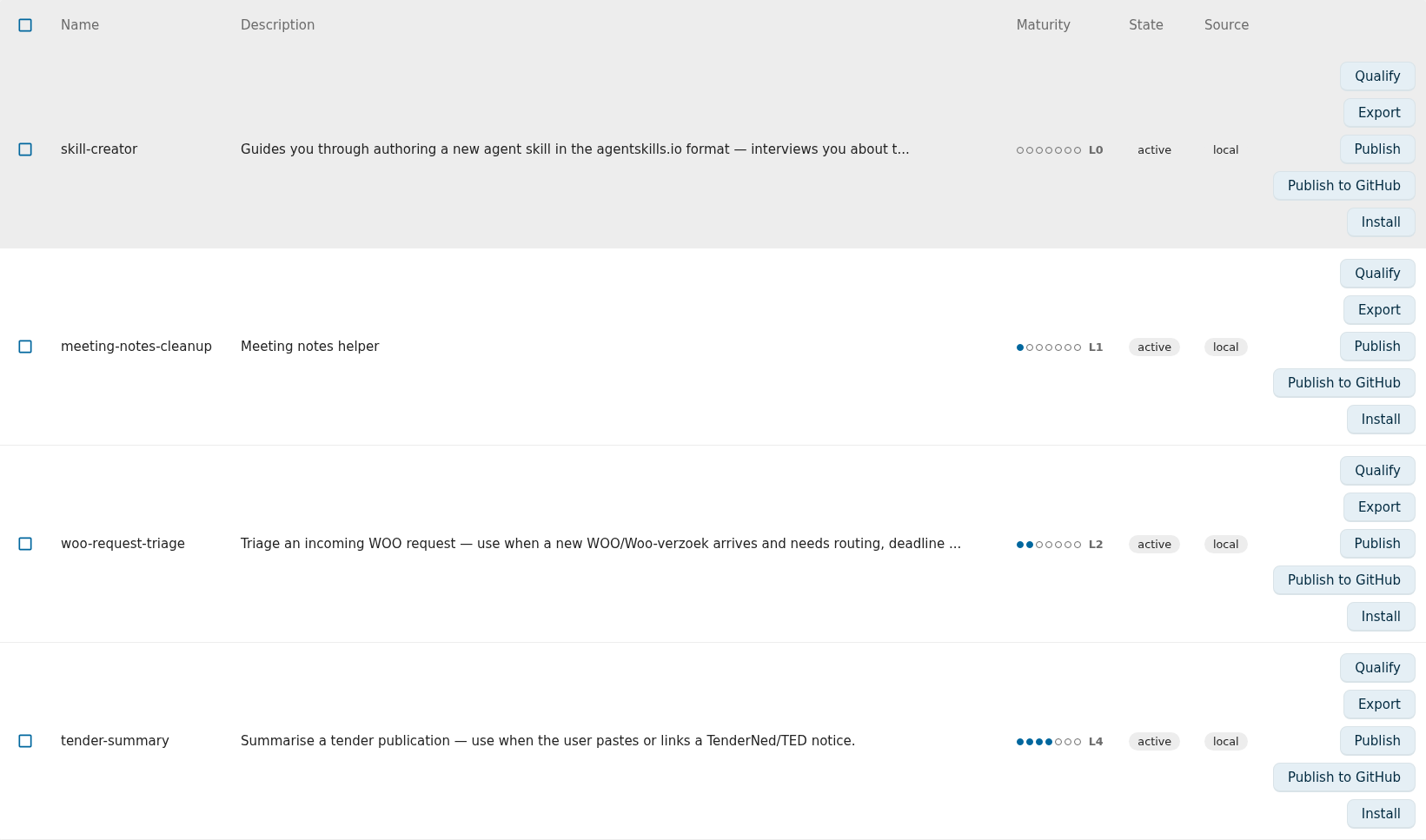
Verify: the catalog lists skill-creator, meeting-notes-cleanup,
woo-request-triage, and tender-summary.
Step 2: Read a skill's anatomy
Click the woo-request-triage row. The skill detail page at /skills/:id opens.
Look for four things:
- Name and description. The description starts with a verb and says when to use the skill. That is trigger quality, and Part 2 scores it mechanically.
- The body. A short procedural SKILL.md: numbered triage steps and guardrails such as "Never name real persons in the triage note; use role names."
- Files. This seed has none. Open
tender-summaryfor comparison: it carriesreferences/exemption-grounds.mdandexamples/tender-summary-example.md. - State. Every skill has a lifecycle state:
active,stale,archived, orquarantined. Onlyactiveskills are ever loaded into an agent's run context.
Verify: you can read the frontmatter, body, and state on the detail page, and
tender-summary shows auxiliary files where woo-request-triage shows none.
Step 3: Install a skill onto an agent
Skills do nothing until an agent carries them. Installing associates the skill with one agent; the agent's next run loads the skill's content into its context.
- Open Agents in the left navigation. Pick an existing agent, or create one with Add Agent (a name and a short instruction are enough for this tutorial).
- Go back to Skills. On the
woo-request-triagerow, open the row actions and choose Install. - Pick your agent and confirm.
Detaching is the same move in reverse: the row actions offer a detach that removes the association on both sides. Detaching a skill that is not installed is a safe no-op.
A skill in stale, archived, or quarantined state is never loaded into a run,
even while it is installed on the agent. If an installed skill has no effect, check
its state first.
Verify: open your agent's detail page. The installed skill is listed under its skills. The skill's detail page lists the agent under its installations.
Step 4: Author a skill with the markdown form
The catalog's Add Skill button opens a purpose-built authoring form, not a generic object dialog. It gives you a markdown editor for the body, plain fields for name, description, and frontmatter, and an editor for auxiliary files.
-
Click Add Skill.
-
Fill in a name:
pet-store-order-summary. -
Fill in a description that says what and when:
Summarise a pet store order — use when the user pastes an order JSON and wants totals, status, and follow-ups. -
Write a short body:
# Pet store order summary 1. Parse the pasted order JSON (id, petId, quantity, shipDate, status). 2. Report the order id, the pet, the quantity, and the ship date in one line each. 3. Flag status `placed` orders older than 7 days as follow-ups. 4. Never invent fields that are not in the order. -
Save.
The form also accepts a paste of a full agentskills.io package: a leading ---
fenced frontmatter block followed by the body. Hermiq splits it into structured
frontmatter and body on import, never storing it as one opaque blob.
Verify: pet-store-order-summary appears in the catalog with state active, and
opening it shows your frontmatter and body separately.
Step 5: Author a skill in conversation
Hand-writing a SKILL.md is fine once you know the format. The seeded skill-creator
skill lets an agent do the interviewing instead.
This step needs an LLM provider configured in Hermiq's admin settings. Without one, read along and come back later.
- Install
skill-creatoronto your agent (step 3, same move). - Open Chat, pick your agent, and ask:
Help me write a skill that turns raw meeting notes into a decision list. - The agent interviews you: one capability, one trigger line, then a drafted SKILL.md in a fenced package.
- On the assistant message with the finished draft, choose Save as skill. The authoring form from step 4 opens, pre-filled with the drafted content.
- Review, adjust the name and description, and save.
A chat-authored skill lands in the quarantined state, not active. The body of
a skill is injected into every future run that loads it. So a curator reviews and
approves chat-authored content before any agent can use it. Skills imported from
outside pass through the same gate.
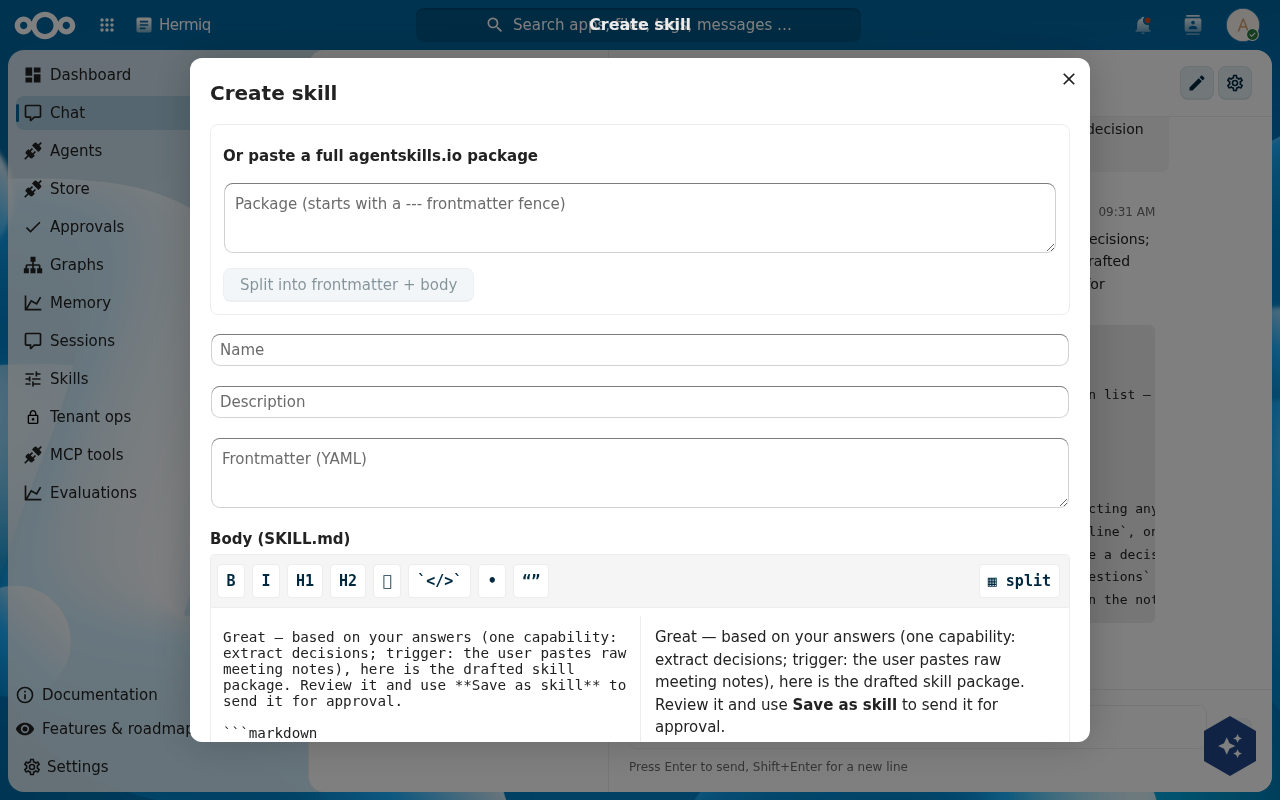
quarantined until someone approves it.Verify: your new skill appears in the catalog with state quarantined, and it
cannot be installed into a run until it is approved.
What you get
A catalog you can read, an agent that carries a skill, and two skills of your own: one hand-written and active, one chat-authored and waiting for review. The maturity dots on every row are the thread this series follows next.
Troubleshooting
The catalog is empty on a fresh installThe seeds run as repair steps on enable. Disable and re-enable the Hermiq app, or
run occ maintenance:repair, then reload the catalog.
An installed skill does not change the agent's behaviourCheck the skill's state on its detail page. Only active skills are
loaded into a run. A stale skill (the curator marks unused skills)
stays installed but silent; edit or re-activate it.
Save as skill does not appear in chatThe action shows on assistant messages. Check that your agent has
skill-creator installed and that its state is active,
and that an LLM provider is configured so the agent can answer at all.
Where to go from here
You now have skills in the catalog with maturity dots you have not yet earned. Part 2 qualifies a skill against the L1 to L7 maturity ladder and reads the scorecard that explains every dot.